
Once protocols are configured in the VitalLink Web Portal, they can be assigned in the app in three ways:
- From the Measure menu
- From the Reminder menu (supports bulk assignment)
- From Settings>Protocol Overview (supports bulk assignment/deactivation)
Once assigned, protocol reminders will appear in the Reminder menu.
I. Assign protocols from the Measure menu
- Tap Measure from the left sidebar menu.
- Select a resident from the list.
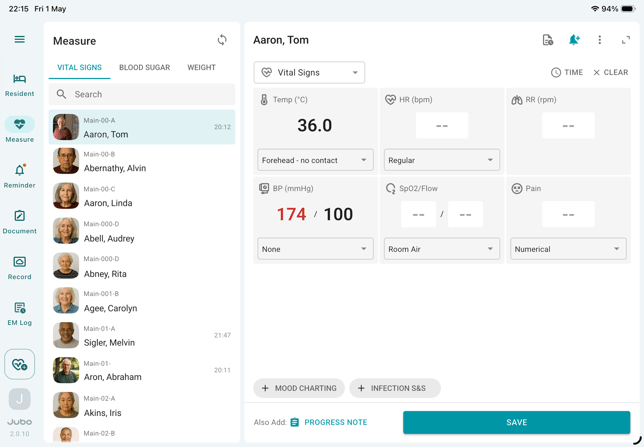
- Tap the Protocol Reminder button (bell icon) in the top-right corner of the measurement panel.
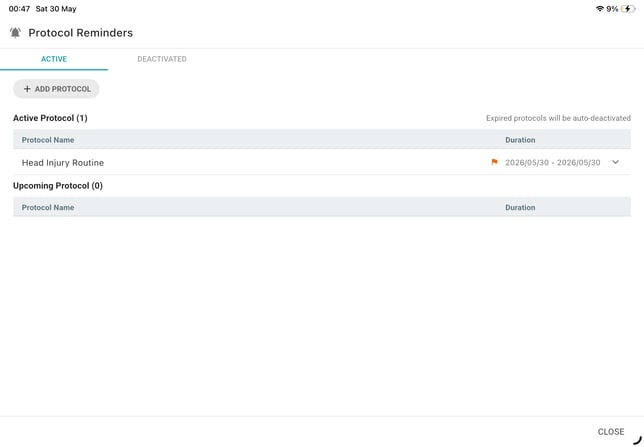
- Tap + Add Protocol.
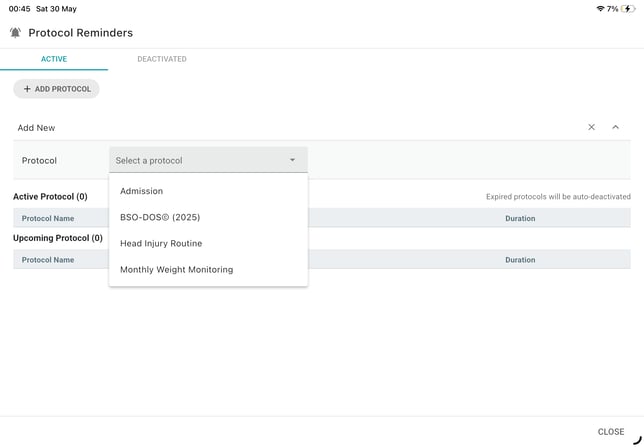
- Select a protocol from the dropdown menu.
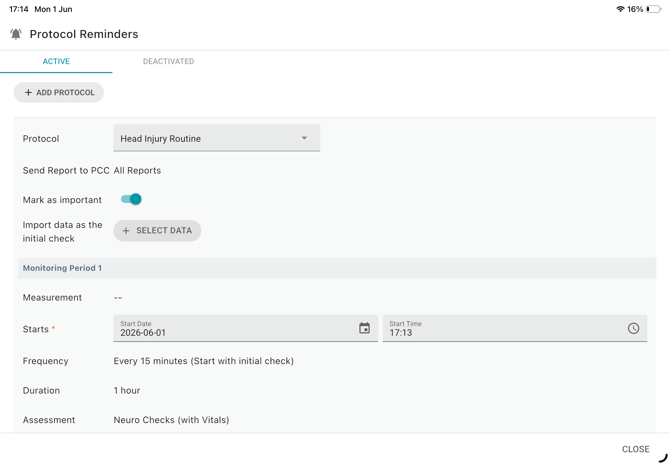
- Configure the protocol settings:
-
Start date and time – Adjust only if the protocol should begin later. To start immediately, leave unchanged.
-
Mark as important – Enable if required.
- Import data at the initial check – Use earlier measurements for the initial check, if applicable.
-
- Tap Assign Protocol to complete the setup.
To deactivate a protocol, tap the Add Reminder (bell icon) again, select the protocol under the ACTIVE tab, and tap Deactivate.
II. Assign protocols from the Reminder menu
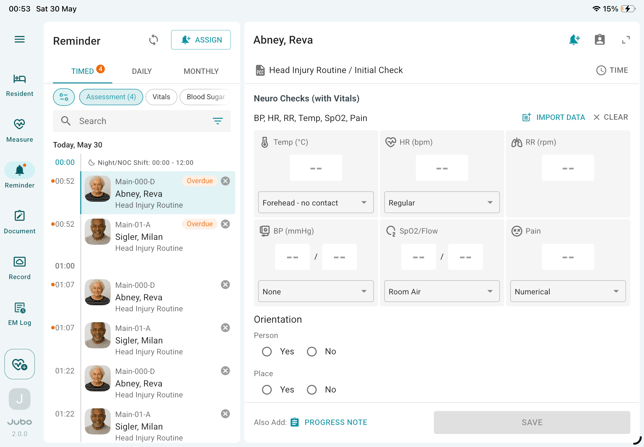
- Tap Reminder from the left sidebar menu.
- Tap + Assign button at the top of the screen.
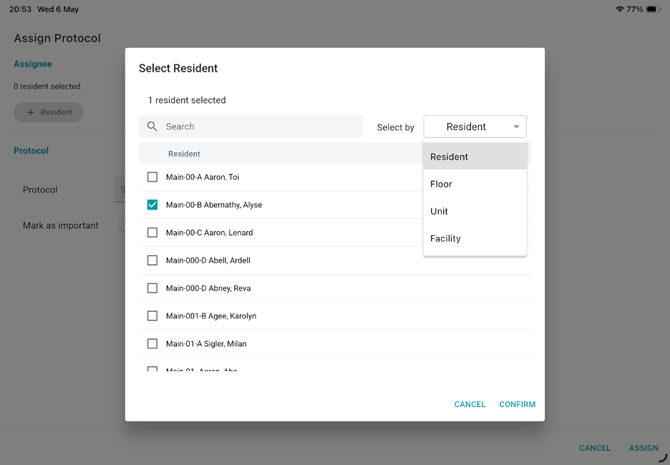
- Tap + Resident and select one resident, or multiple residents by facility/floor/unit from the dropdown menu ‘Select by’, then tap Confirm.
- Select a protocol from the dropdown menu.
- Follow steps 6–7 in Section I to complete the assignment.
III. Assign Protocols from Settings > Protocol Overview
- Tap the hamburger menu icon (☰) from the left sidebar and select Settings.
- Select the Protocol Overview.
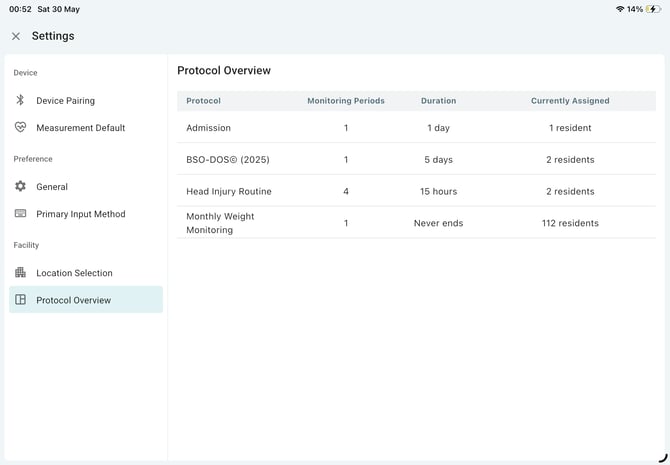
- Select a protocol to view details.
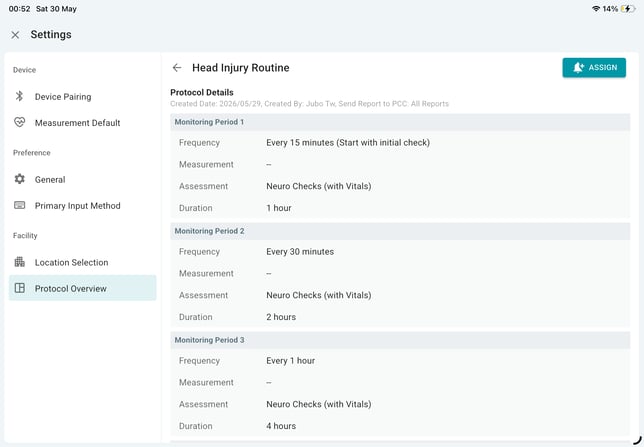
- Scroll down to view current assignments.
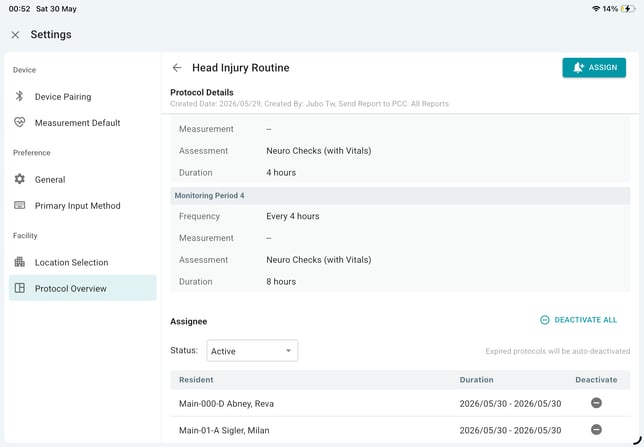
- Tap + Resident and select one resident, or multiple residents by facility/floor/unit from the dropdown menu ‘Select by’, then tap Confirm.
- Follow steps 6–7 in Section I to complete the assignment.
To deactivate assignments:
- Within a selected protocol, scroll to the Assignees section.
- Tap Deactivate icon next to an individual assignment or tap Deactivate All on top of the assignee table to remove all active assignments.
Note
1.Protocols can be set up facility-wide from the VitalLink Web Portal and assigned on an individual basis from the VitalLink App.
2.For protocols configured with a specific end date and PDF summary report generation, the summary report will automatically synchronize to PointClickCare (PCC) once the final reminder task is completed. If the protocol remains incomplete after a defined period (10 days after the final reminder), the system will automatically deactivate the protocol and send the summary report to PCC. Any incomplete reminder tasks will be marked as Skipped in the report.