
Once protocols are configured in the VitalLink Web Portal, they can be assigned in the app in three ways. Once assigned, protocol reminders will appear in the Reminder menu.
- From the Measure menu
- From the Reminder menu (supports bulk assignment)
- From Settings>Protocol Overview (supports bulk assignment/deactivation)
I. Bulk-assign protocols from the Reminder menu
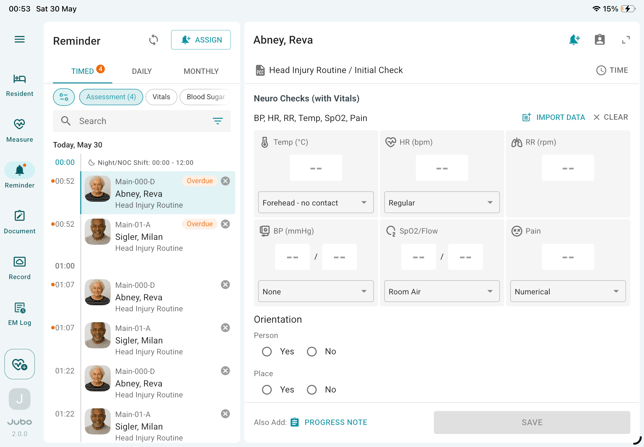
- Tap Reminder from the left sidebar menu.
- Tap + Assign button at the top of the screen.
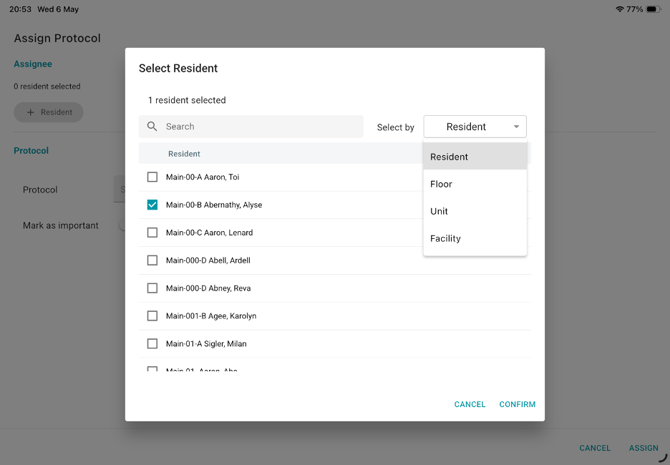
- Tap + Resident and select one resident, or multiple residents by facility/floor/unit from the dropdown menu ‘Select by’, then tap Confirm.
- Select a protocol from the dropdown menu.
- Complete the rest of the configuration and tap CONFIRM.
II. Bulk-assign protocols from Settings > Protocol Overview
- Tap the hamburger menu icon (☰) from the left sidebar and select Settings.
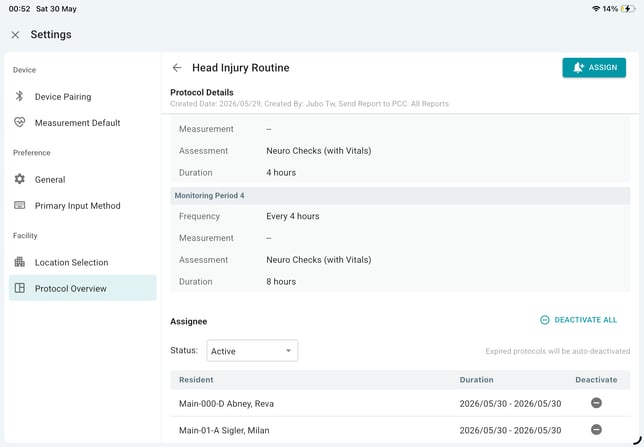
- Select the Protocol Overview.
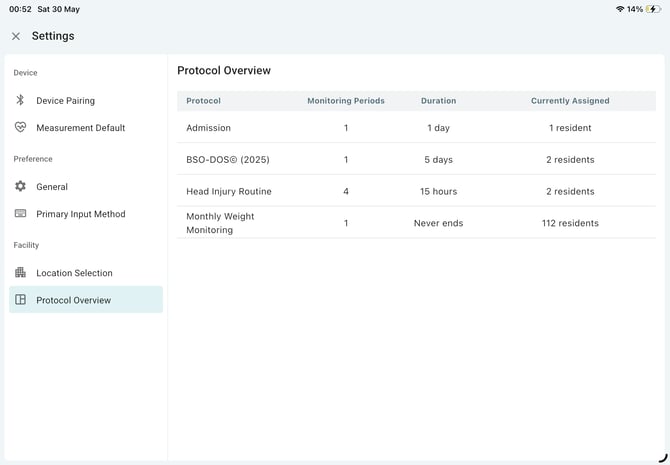
- Select a protocol to view details.
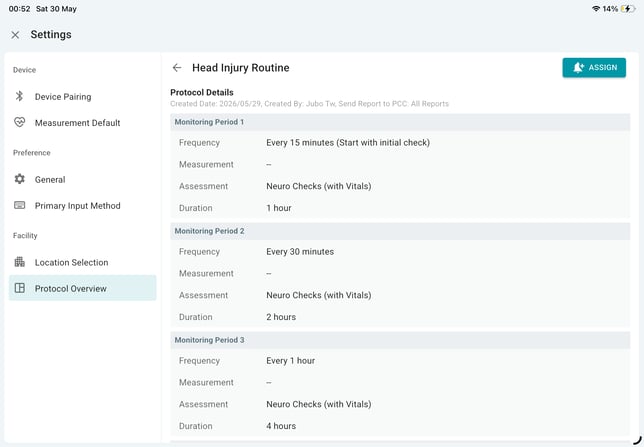
- Scroll down to view current assignments.
- Tap + Resident and select one resident, or multiple residents by facility/floor/unit from the dropdown menu ‘Select by’, then tap Confirm.
- Complete the rest of the configuration and tap ASSIGN.
To deactivate assignments:
- Within a selected protocol, scroll to the Assignees section.
- Tap Deactivate icon next to an individual assignment or tap Deactivate All on top of the assignee table to remove all active assignments.
Note
Protocols can be set up facility-wide from the VitalLink Web Portal and assigned on an individual basis from the VitalLink App.