
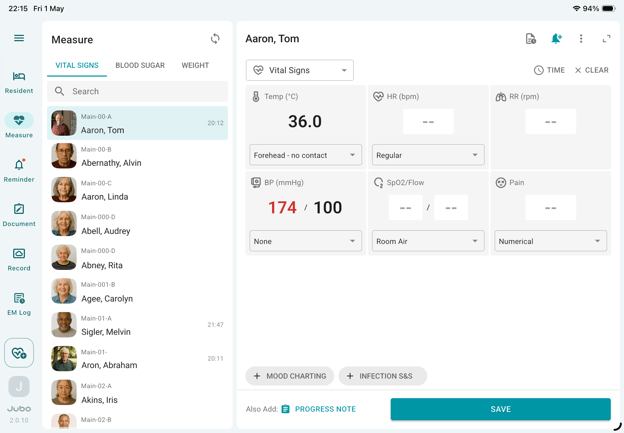
- Tap Measure from the left sidebar menu.
- Select the Vital Sign tab at the top of the resident list.
- Select a resident from the list.
- Tap + INFECTION S&S (Signs and Symptoms) at the bottom of the screen.
- In the opened dialogue: Tap Yes and select all applicable signs and/or symptoms, or Tap No if no signs or symptoms are observed.
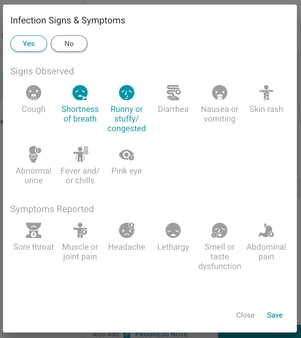
- Tap Save to close the dialogue.
- Record any additional vital signs as needed, then tap Save to complete the documentation and upload the data.
Notes
1. To edit Infection Signs and Symptoms before saving, tap + Infection S&S again and make the necessary changes. Edits cannot be made after the record has been uploaded.
2. This feature does not integrate with the Infection Tracking module in PointClickCare. However, the documented data is available in the VitalLink Web Portal for review and in protocol summary reports (if Infection Signs and Symptoms are included in the protocol setup).