
BSO-DOS includes three sections, and these sections are usually completed by different care roles.
- Step 1 – Background (usually by Registered Nurses or BSO nurses)
- Step 2 – Data Collection (usually by PSWs or caregivers)
- Step 3 – Analysis & Planning (usually by Registered Nurses or BSO nurses)
Admin users can configure task visibility by role, so users only see the reminders relevant to them, following the steps below: Verify User Roles, Check Access to BSO-DOS, Open the BSO-DOS Protocol and Set Task Visibility by Role
I. Verify User Roles
-
Log in to the VitalLink Web Portal with an Admin account.
-
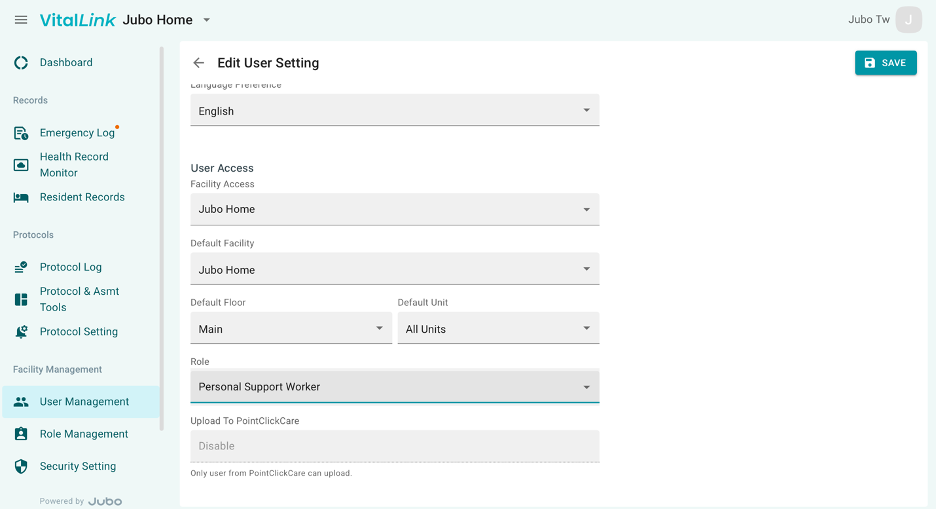
Click User Management.
-
Review the users' account involved in documenting BSO-DOS.
-
Ensure the correct role is assigned to each user account in the Role column.
II. Check Access to BSO-DOS
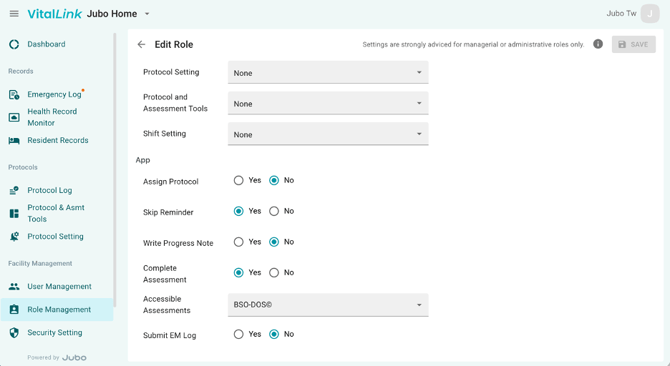
- Click the Role Management Setting.
- Click the user roles that are involved in documenting BSO-DOS.
- Confirm if the roles involved have the right access to ‘Accessible Assessment’.
Default system settings:
- PSW roles can access BSO-DOS.
- Registered staff roles can access all assessments, including BSO-DOS.
III. Open the BSO-DOS Protocol and Set Task Visibility by Role
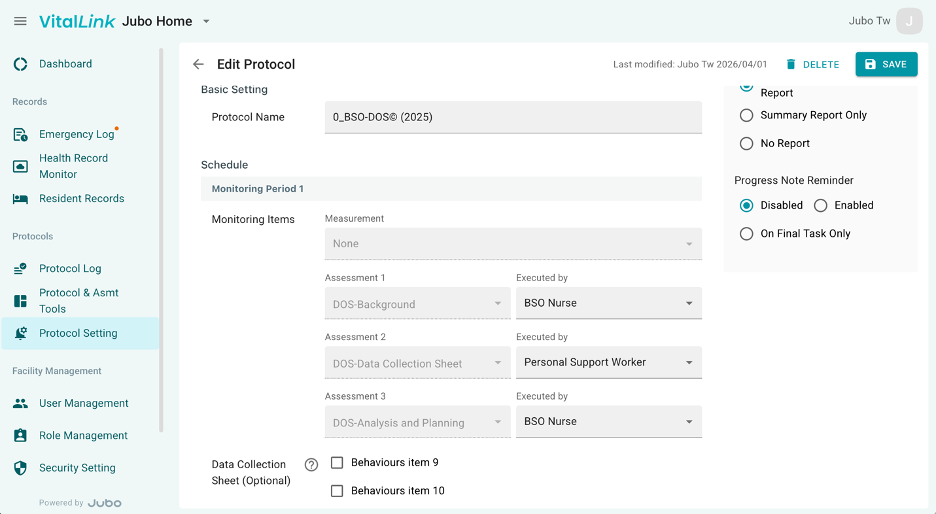
- Click Protocol Setting.
- Select BSO-DOS (If BSO-DOS is not listed yet, go to Protocol and Assessment Tools to enable it).
- Scroll down to the Assessment Section.
- Locate the Assessment for different sections and update task visibility by clicking ‘Executed by’ and select the roles in the drop-down list.
- Click Save to complete the setting.
Note:
Protocols cannot be edited while assigned to residents. Before making changes:
- Ensure all active BSO-DOS assignments are completed.
- Update the protocol before starting the next BSO-DOS cycle.