
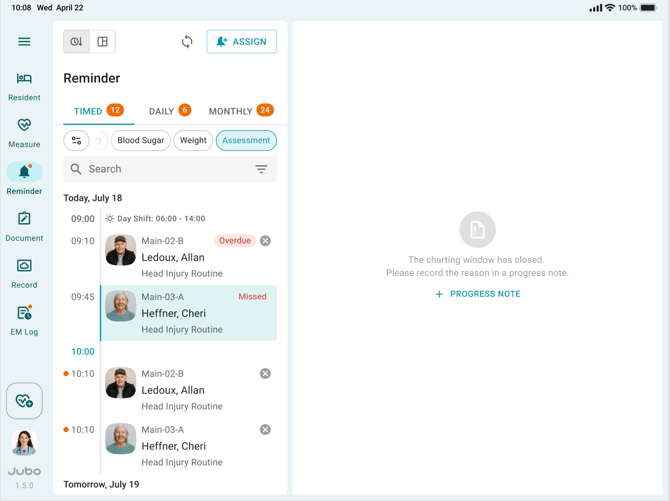
As a task moves past its due time, VitalLink shows users exactly where it stands – Overdue, or Missed – and provides a shortcut for users to document why a task is Missed in the progress note. The time to show Overdue and the Missed status can be configured from the VitalLink web portal.
- Overdue – the task is late, but it's still open and can be charted.
- Missed – the charting window has closed.
Documenting a Missed task with a progress note
- Select Reminder from the menu.
- Missed tasks show red text on the task card. Alternatively, select the task status filter on top to find the Missed tasks.
- Tap the Missed task.
- Tap +PROGRESS NOTE.
- Fill out the progress note, then save.
Adding a progress note doesn't reopen the task or change its Missed status. If additional complete assessment is needed for the HIR protocols, start an additional charting through Document > Assessment.
Notes:
1. The reminder list now looks back up to 30 days – the longest charting window a facility can set – so any task which is still able to chart should appear on the list.
2. On printed or PDF protocol reports, Missed appears in the Status column.
3. When the last task in a protocol passes its charting window, the whole protocol closes automatically. The system can take up to about an hour to generate and sync the summary report to PointClickCare.