
I. Edit a Protocol
- Click Protocol Settings from the left sidebar menu.
- Select the protocol you want to edit.
- If the protocol is not currently assigned to any residents, update the settings as needed and click Save.
If the protocol is actively assigned to residents, the system will prompt you to create a copy when clicking Save. This helps prevent potential confusion caused by different protocol configurations using the same protocol name.
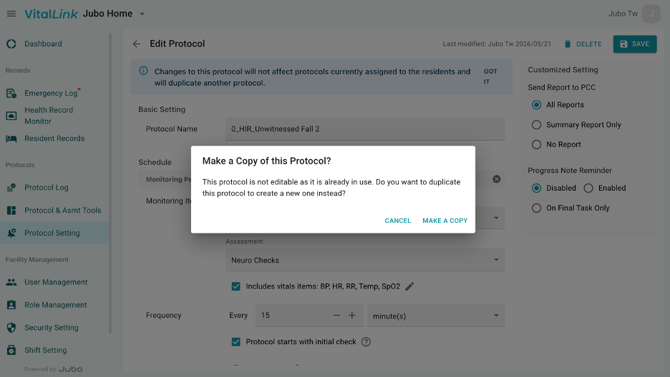
However, if you want to update a protocol’s settings while keeping the same protocol name, follow the steps below.
For example, if you want to change an existing protocol (HIR) from measuring only BP to measuring both BP and HR, you can:
- Create a copy of the protocol using a temporary name (e.g., HIR-1).
- Delete the original protocol (HIR).
- Rename HIR-1 to HIR.
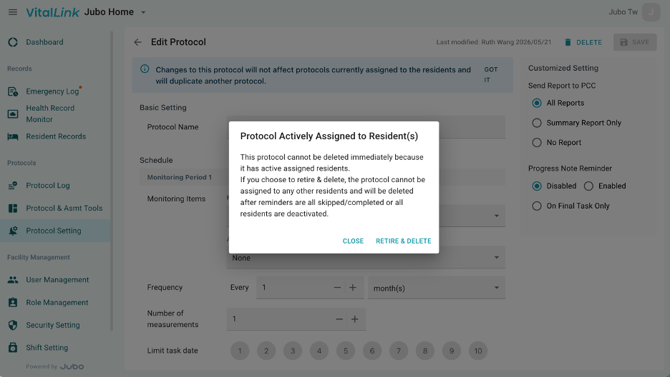
When the original protocol (HIR with BP) is deleted, any active assignments will remain available until all reminders are completed, skipped, or deactivated. However, new assignments can only be created using the updated protocol configuration (HIR with BP & HR).
II. Delete a Protocol
- Select the protocol you want to delete.
- If the protocol is currently assigned to residents, the system will display a message indicating that the protocol can no longer be assigned to additional residents, and it will be deleted only after all reminders are completed, skipped, or all residents are deactivated.
- Click Retire and Delete.
Deleted or retired protocols will remain visible in gray at the bottom of the protocol overview list and can no longer be edited. These protocols will also no longer be available for selection in the app.