
- Click Emergency Log in the menu to view all emergency measurements and their documentation status.
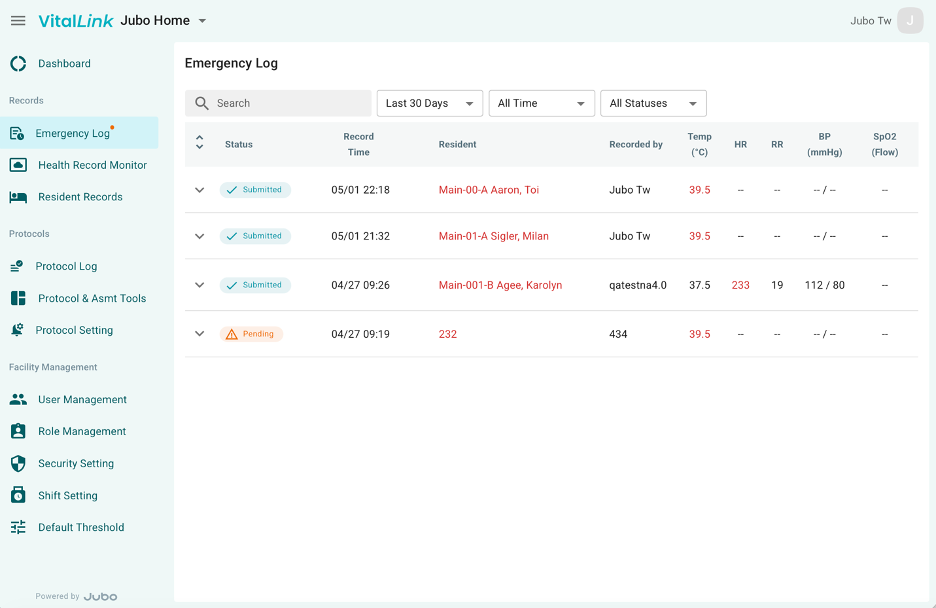
- Use the time filter at the top to review emergency measurements from different time periods.
- Check the Status to see if the measurement is still pending submission or has already been submitted via the VitalLink app. The status Submitted confirms that the data has been officially filed in the Health Record Monitor and also synced to the linked EHR system.
- Click the Expand icon in front of the specific submission status to see the timeline of actions, including when the emergency measurement was saved, submitted, and if a protocol was assigned.
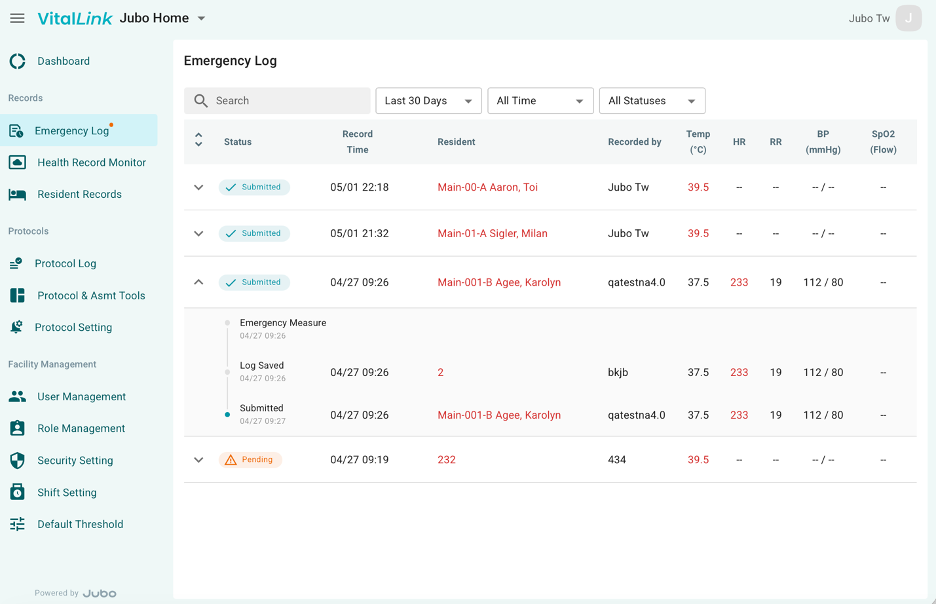
The status timeline records all actions taken in the VitalLink app:
- Emergency Measure – The time when the user taps the emergency Measure button.
- Log Saved – The time when the user taps Save during recording.
- Submitted – The time when the user taps Submit within the EM Log.
- Protocol Assigned – The time when a specific protocol is scheduled to start.
Note
Emergency measurement can be taken and submitted from the VitalLink App and the recording/submission status can be tracked in the Emergency Log from VitalLink Web Portal.