
Pair VitalLink-compatible medical devices to automatically synchronize measurement data from medical monitors to the app.
Before starting device pairing, ensure that:
- Bluetooth is enabled on the iPad.
- The VitalLink-compatible medical device you want to pair is powered on.
-
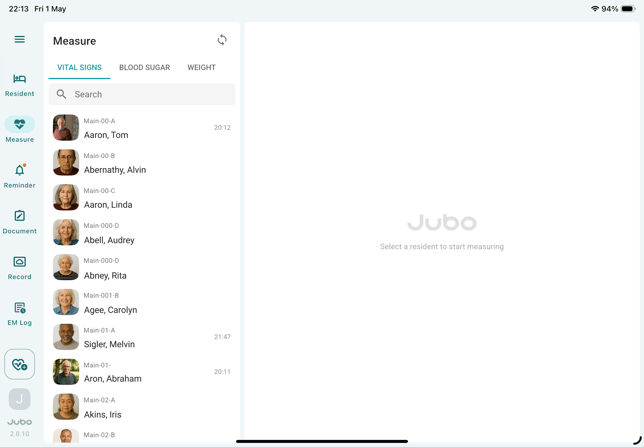
Tap the hamburger menu icon (☰) on the left-side menu bar to expand the full menu, select Settings.
-
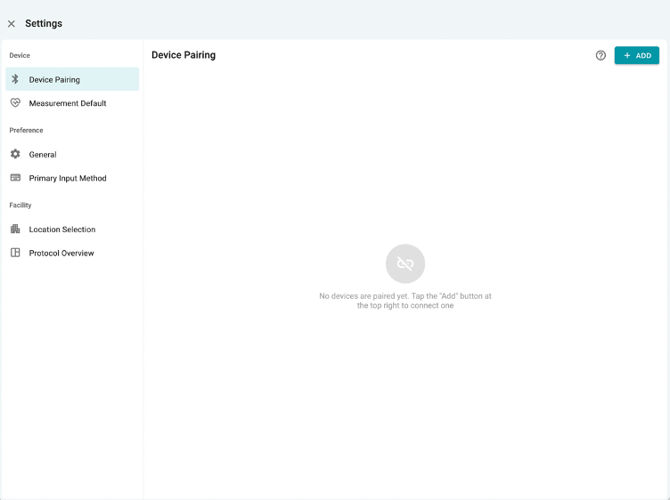
At the Device Pairing tab, tap +ADD button on the top-right corner to start pairing a new device.
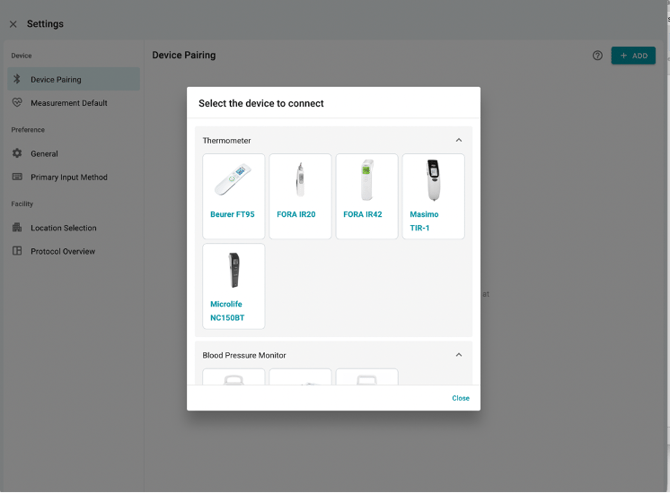
- Select the device in the list you want to connect.
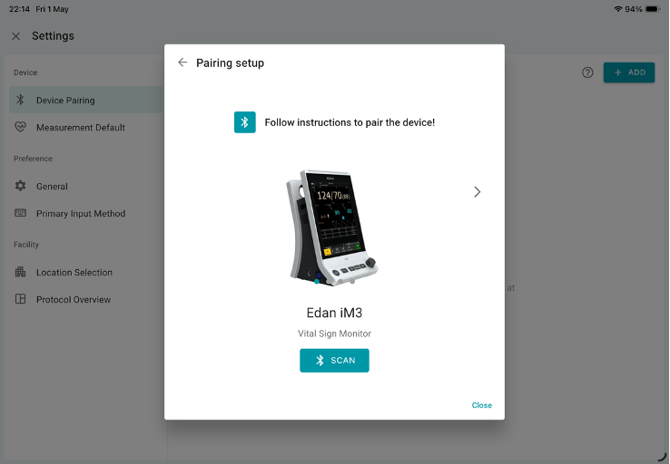
- Follow the pairing instructions in the dialogue to complete the pairing. Tap SCAN to search medical devices nearby to continue the pairing.
- The app will display all VitalLink-compatible medical devices nearby in the list, selecting the correct device you are using, and tap PAIR.
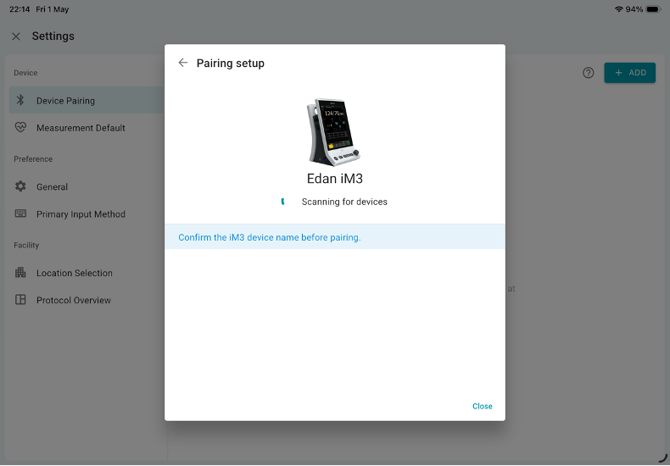
- Once paired, the devices tab will automatically update to display your new device.
Note
1. During pairing, it is recommended to have only 1 medical device turned on at one time to avoid mispairing. If multiple medical devices are turned on, they should be ranked in the pairing list from the top indicating the device that is nearest to the iPad.
2. For an Edan iM3 monitor, each of the devices can be set up with its unique name, and during pairing, you should be able to find the specific-named Edan monitor for you to pair. Contact Jubo support team to learn more about how to name your Edan monitor.