
In the VitalLink Web Portal, admin users can access Protocol and Assessment Tool to:
- Select commonly used protocol templates, customize monitoring parameters, and efficiently complete protocol setup.
- Choose assessments for facility-wide use and link specific assessments as documentation requirements within protocols.
Once the protocol setup is completed in the web portal, VitalLink app users will have access to the corresponding protocols and assessments.
I. Apply protocols templates
-
Click on Protocol and Assessment Tools in the menu, and users will be directed to the default tab, PROTOCOL.
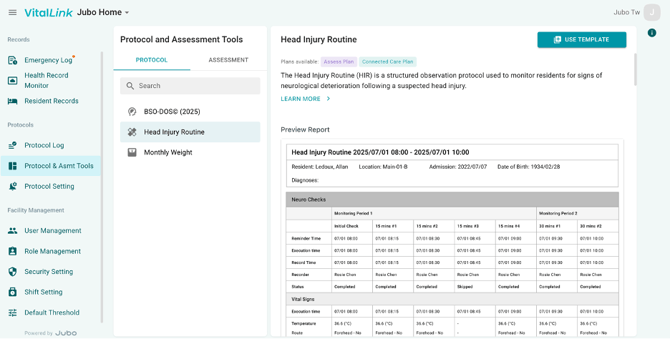
- Click on any template from the list on the left to review detailed information about the protocol template and the PDF report it generates at the right.
- Click the USE TEMPLATE button at the top-right corner to begin customize the protocol.
- For most protocols, users can configure all parameters, including protocol name, measurement parameters, monitoring frequencies, and more.
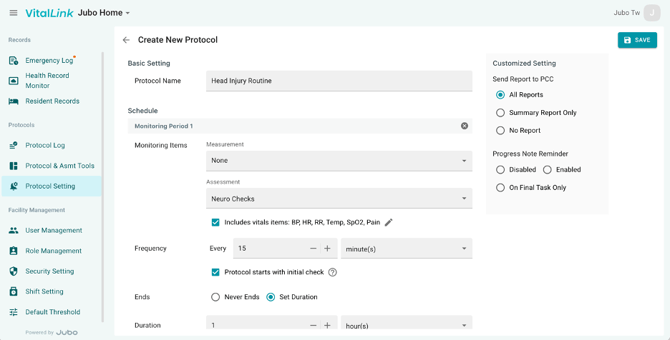
- After reviewing the entire protocol setup, click the Save button at the top-right corner to complete the configuration.
When using the Head Injury Routine (HIR) protocol templates with Neuro Check (with Vitals) or Glasgow Coma Scale (with Vitals), select the vital sign items that users are required to complete by clicking the pencil icon next to “Includes Vital Items:…” to adjust the items. You do not need to select additional measurement items from the Measurement dropdown menu when using this template.
II. Select the assessments
- Click on Protocol and Assessment Tools in the menu, then select the Assessment tab at the top.
.png?width=644&height=342&name=Web_P%26S%20Tools_GCS%20(with%20vitals).png)
- Select an assessment from the list and review the details on the right.
- To configure which assessments are available in the VitalLink app, click the gear icon on the right and toggle the desired assessments on or off.
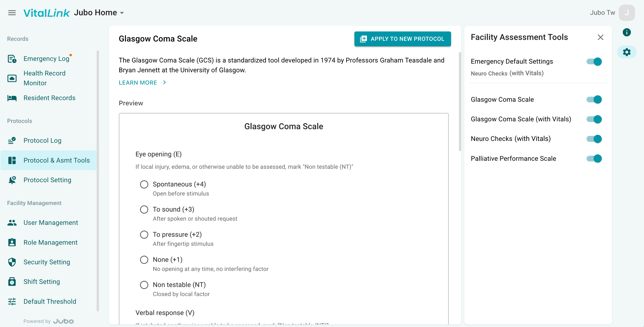
- To include an assessment as part of a protocol documentation requirements, click Apply to New Protocol in the top-right corner. You will be redirected to the protocol setup page with the selected assessment preconfigured.
- After reviewing the entire protocol setup, click the Save button at the top-right corner to complete the configuration.
Note
1. For the setup of BSO-DOS© (2025) protocol, only the protocol name and two additional behavioural items can be customized, in accordance with the e-version standard mandated by the Behavioural Support Ontario Provincial Coordinating Office.
2. Protocols that include the following assessments - Neuro Check, Glasgow Coma Scale, Palliative Performance Scale, and BSO-DOS - will appear under the Reminder > ASMT tab in the app.
3. The admin user is the default role with access to the Protocol and Assessment Tool. To modify role-based access, the admin can configure permissions in the Role Management Settings.