
-
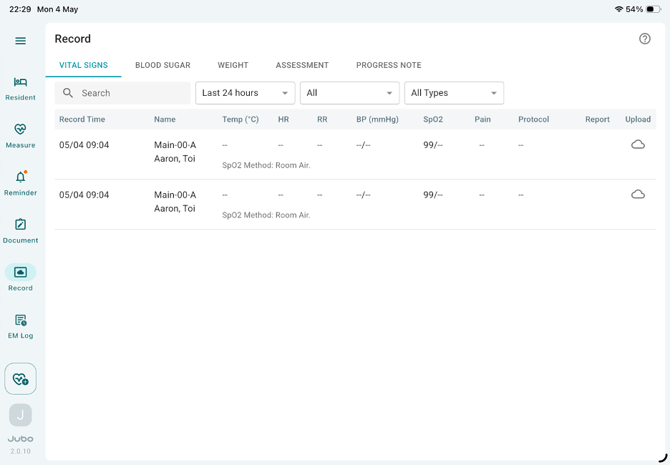
Tap Record in the left sidebar menu.
-
Select one of the following tabs at the top: VITAL SIGNS, BLOOD SUGAR, WEIGHT, ASSESSMENT, or PROGRESS NOTE, to review records taken.
-
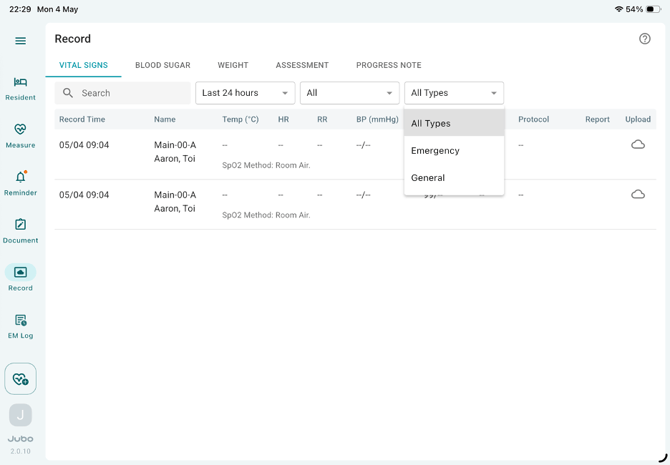
Use the data filter at the top to view records from a different date range, filter for abnormal values, or select specific measurement types (e.g., emergency measurement).
- If a data entry is recorded as part of a protocol, the protocol name will appear in the Protocol column. If the documentation is configured to generate a PDF report, a PDF icon will be displayed in the Report column. Tap the icon to preview the PDF report.
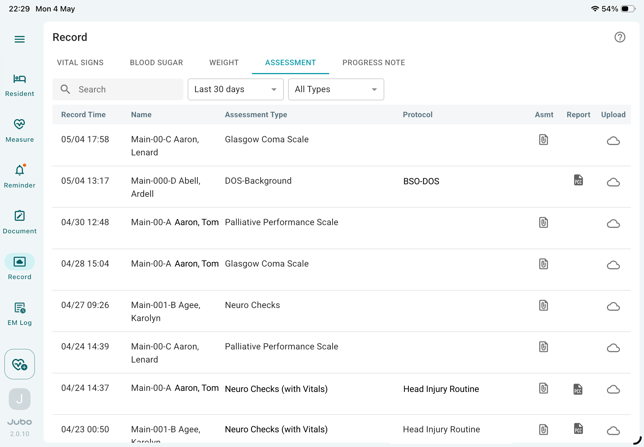
- On the far right, there is the Upload status indicated by a cloud icon. This shows whether the data has been successfully synced to PointClickCare (a cloud icon with a uploading arrow).
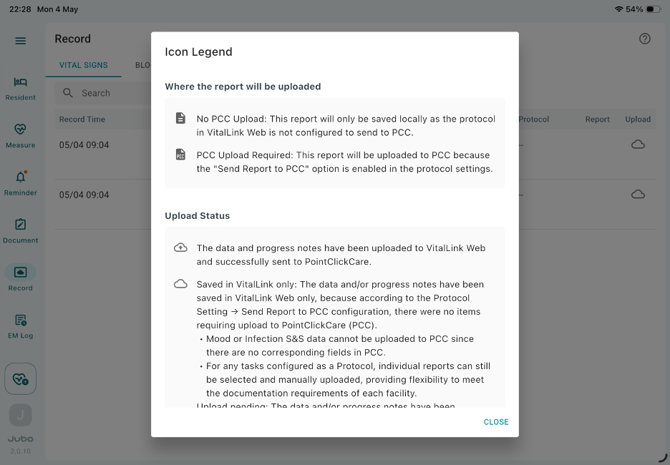
- Tap the Icon Legend icon in the top-right corner to learn more about PDF Report and PCC upload status.
Upload Requirement
Description

No PCC Upload
This report will only be saved locally as the protocol in VitalLink Web is not configured to send to PCC.

PCC Upload Required
This report will be uploaded to PCC because the "Send Report to PCC" option is enabled in the protocol settings.
Upload Status
Description

Uploaded to PCC
The data and progress notes have been uploaded to VitalLink Web and successfully sent to PointClickCare (PCC).

1.Saved in VitalLink
Saved in VitalLink only: The data and/or progress notes have been saved in VitalLink Web only, because according to the Protocol Setting → Send Report to PCC configuration, there were no items requiring upload to PCC.
• Mood or Infection S&S data cannot be uploaded to PCC since there are no corresponding fields in PCC.
• For any tasks configured as a Protocol, individual reports can still be selected and manually uploaded, providing flexibility to meet the documentation requirements of each facility.
2.Upload pending
The data and/or progress notes have been uploaded to VitalLink Web but not yet sent to PointClickCare. This may happen if the record creator isn't using a PCC account, or if manual upload is enabled in settings. Please ask an authorized user to upload it via the VitalLink Web.

Internet connectivity issue
The data and/or progress notes have been saved locally due to unstable internet. Please check your connection. Once stable, the data will auto-upload at your next sign-in, or you can tap "Sync" to upload manually.

Failure to upload to PCC
The data and/or progress notes have been uploaded to VitalLink Web but failed to send to PCC. Tap the icon to check the reason.

User Permission configuration on PCC EHR
The data and/or progress notes have been uploaded to VitalLink Web but couldn't be sent to PointClickCare due to insufficient PCC permission. Tap the icon for details and next steps.