
-
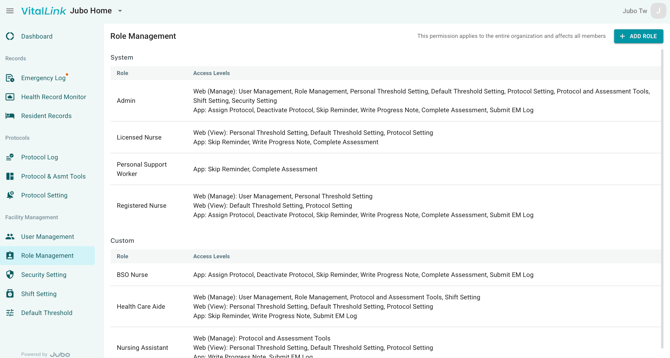
Click Role Management from the left sidebar menu. This will display preconfigured system roles and their access levels for both VitalLink web portal and app.
-
Click +ADD ROLE to create a custom role.
-
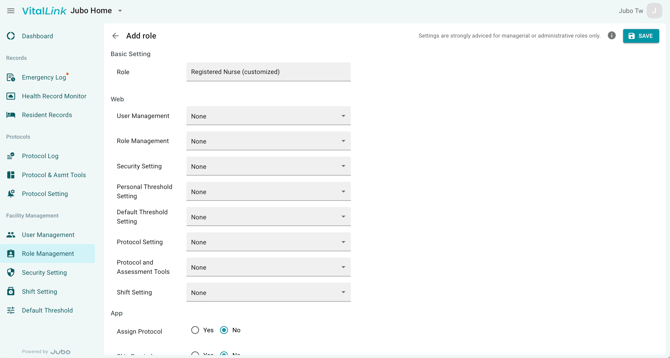
Enter the role name, then configure access permissions for available functions, including:
a.Web (Options: None/View/Creat/Edit/Delete/Manage)
- User Management
- Role Management
- Security Setting
- Personal Threshold Setting
- Default Threshold Setting
- Protocol Setting
- Shift Setting
b. App (Options: Yes, No)
- Assign Protocol
- Deactivate Protocol
- Skip Reminder
- Write Progress Note
- Complete Assessment
- Submit EM Log
When users are granted access to ‘Complete Assessments’, admin users can further define which specific assessments they are allowed to access.
-
Click Save in the top-right corner to complete the role configuration.
-
To edit a system role or a customized role, click the role and update the access permissions as needed.
Note
-
For BSO-DOS users, configure the PSW role with access to BSO-DOS only. Users assigned this role will only BSO-DOS, but not the rest of the assessments, under Reminder > ASMT tab in the app.
-
When users sign in with their PCC account for the first time, their role will be automatically set to Licensed Nurse by default. Admin users can update their roles in User Management as needed.