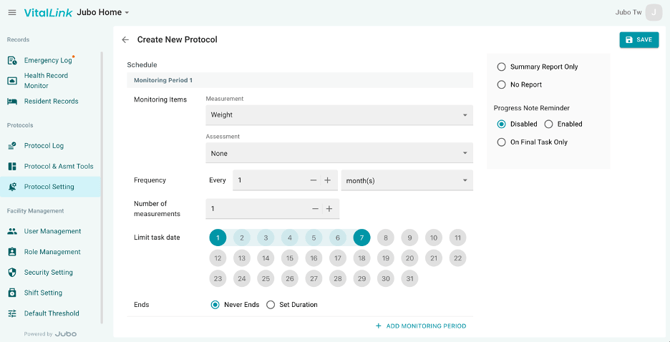
There are two ways to set up protocols in VitalLink. You can create protocols directly through Protocol Settings, as described in this article, or build protocols such as Head Injury Routine or BSO-DOS, using predefined templates through Protocol & Assessment Tools. For more information about templates, refer to the Protocol & Assessment Tools article.
The following section explains how to create and configure a protocol through Protocol Settings.
-
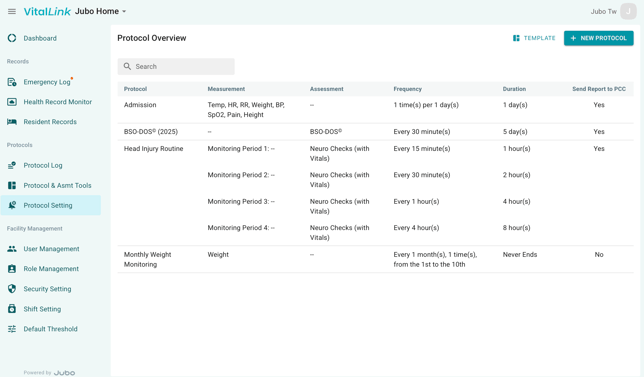
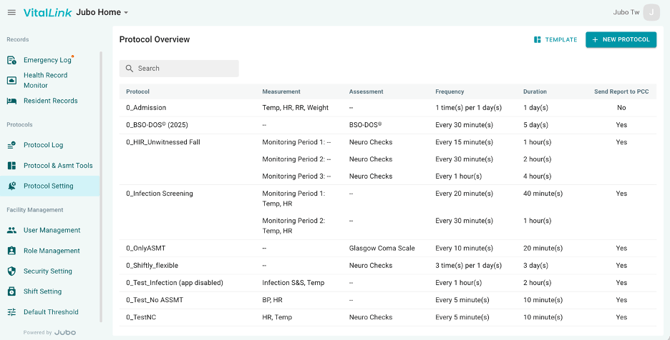
Click Protocol Settings from the left sidebar menu. All available protocols will be displayed in the overview list.
-
Click + NEW PROTOCOL button in the top-right corner to create a new protocol. Alternatively, click TEMPLATE to create a protocol using a predefined template. See ‘Setting up protocols using templates’ for more details.
-
Configure details of a protocol.
- Enter the protocol name.
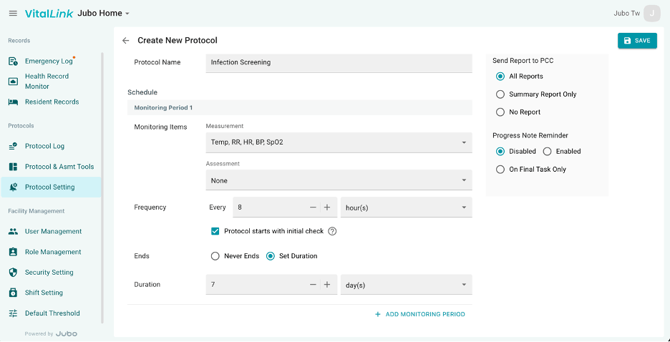
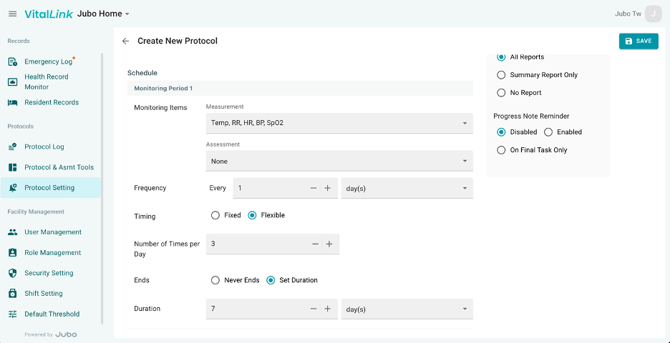
- Configure Monitoring items, Frequencies, and Duration.
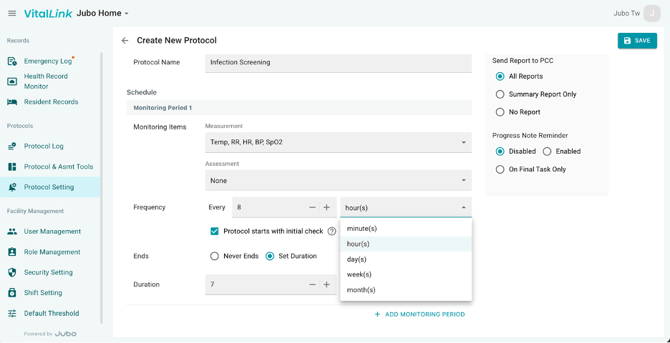
-
Monitoring items - Measurements (e.g., vital signs), Assessments (e.g., Neuro Check assessment)
- Frequency - Minute(s), hour(s), day(s), week(s), month(s)
-
Duration - Never Ends, Set Duration
-
- To configure different monitoring items or frequencies within the same protocol, click + ADD MONITORING PERIOD, and repeat the setup steps above.
- Enter the protocol name.
-
On the right side of the page, configure additional setting in Custom Settings, including Send Reports to PCC, and Progress Note Reminder.
-
Click Save in the top-right corner to complete the setup. The new protocol will appear in the overview list.
Note
1. Protocols can be configured facility-wide through the VitalLink Web Portal and assigned individually within the VitalLink App.
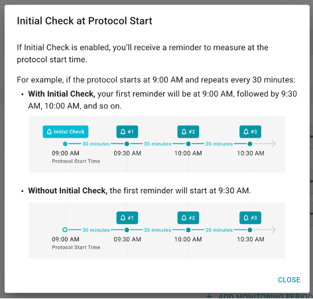
2. Initial checks: when Minute(s) or Hour(s) is selected, the option Protocol Starts with Initial Check becomes available. When enabled, the first reminder will occur immediately at the protocol start time.
3. Flexible protocol: when frequency is set to Every 1 Day, you can configure reminder timing as Fixed (Set specific reminder times during the day) or Flexible (Define the number of reminders per day without specifying exact times).
4. Limit task date: when Month(s) selected, you can specify the number of measurements required and restrict reminder dates using a defined date range.