
When users sign in to the VitalLink app using their PointClickCare (PCC) credentials, documentation and protocol-generated PDF reports can automatically synchronize to PCC, provided the user has the required PCC permissions.
To ensure successful synchronization, verify the user’s permissions in PCC EHR by navigating to:
Admin > Setup > Security Users / Security Roles > Clinical tab
Configure the appropriate access permissions for the modules that users need to synchronize documentation or upload files to.
|
VitalLink data |
Format |
PCC Modules Names |
User permission on PCC |
|
Vital signs |
Value |
Wts/Vitals |
At least: Read/add |
|
Blood sugar |
Value |
Wts/Vitals |
At least: Read/add |
|
Weight |
Value |
Wts/Vitals |
At least: Read/add |
|
Progress Note |
Text |
Prog Note |
At least: Read/add |
|
Protocols – HIR |
|
Misc |
At least: Read/add |
|
Protocols – BSO-DOS |
|
Misc |
At least: Read/add |
For example:
- Users with permission to create Vital Signs records in PCC can automatically sync VitalLink measurements to the PCC Vitals section.
- Users with permission to upload files to the PCC Miscellaneous module can automatically sync protocol-generated PDF reports, such as HIR or BSO-DOS summaries.
To examine whether users have permission to upload PDF reports to PCC Miscellaneous (Misc), verify that the user’s PCC Security Role includes at least Add access for the Misc feature as follows:
- In PCC EHR, navigate to:
Admin > Other > Setup > Security Roles - Open the applicable Security Role.
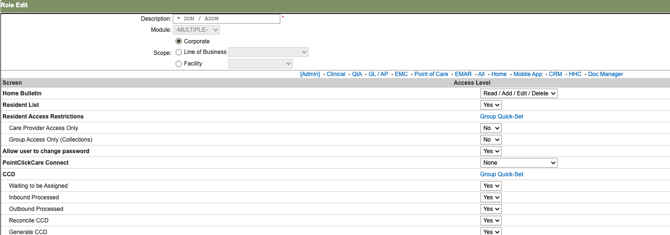
- Search for Misc (using Ctrl + F on Windows or Command + F on Mac).
- Update the access level to include Add, then click Save.
