
- Tap Document from the left menu bar.
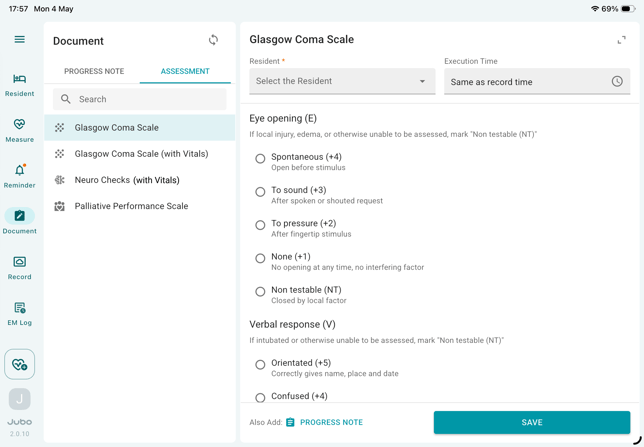
- Select the ASSESSMENT tab at the top and choose an assessment.
- Select a Resident from the right panel to begin the assessment.
- Tap Also add PROGRESS NOTE below to include the assessment details in the progress note via Smart Input feature.
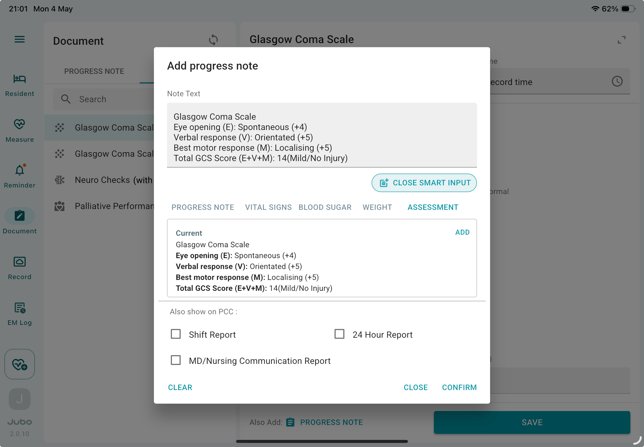
- Tap the Save button to complete the assessment.
Note
1. Assessments can also be integrated into a protocol to streamline the documentation process. To learn more, see ‘Protocol and Assessment Tool Settings’.
2. Assessments completed as part of a protocol will have their details sent to PCC Misc in PDF format. However, assessments taken directly under the Document section will not trigger PDF generation or file storage in PCC.