
In urgent situations where recording health data immediately is a priority, you can take emergency measurements first without signing in and then submit the recordings later.
I. Recording Emergency Measurements
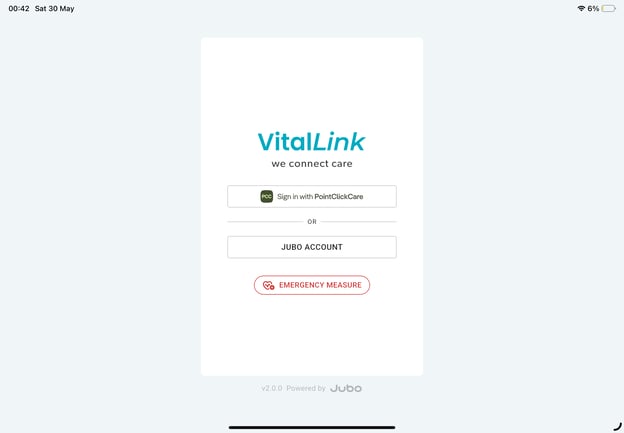
- Tap the Emergency Measure button at the bottom of the sign-in screen.
- Enter the Resident Name and Record by as a temporary reference, and you can revise them later when officially submitting the record.
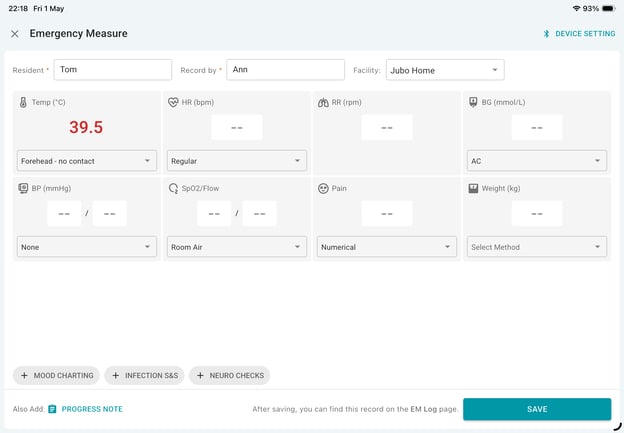
- Record vital signs, mood charting, progress notes, or other relevant assessments.
- Tap Save to store the data for later review and submission.
- Sign in to the app with your PointClickCare account and credentials.
- Tap EM Log in the menu.
- Select the emergency measurement just recorded, and tap Submit under the column ‘Add to Record’.
- In the data submission dialog, you can update the resident name, measurement execution time, assign protocols, and add additional assessments or progress notes.
- Tap Submit at the bottom to complete the data recording and upload the data..
Note that the first time using the app, you will need to sign in with your account and credential to enable the emergency measurement function.
Once the emergency situation is addressed, sign in to the app to continue data submission.
II. Reviewing and Submitting Emergency Measurements
- Sign in to the app with your PointClickCare account and credentials.
- Tap EM Log in the menu.
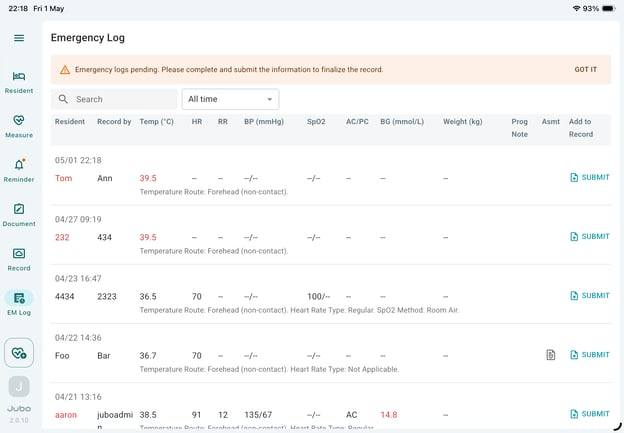
- Select the emergency measurement just recorded, and tap Submit under the column ‘Add to Record’.
- In the data submission dialog, you can update the resident name, measurement execution time, assign protocols, and add additional assessments or progress notes.
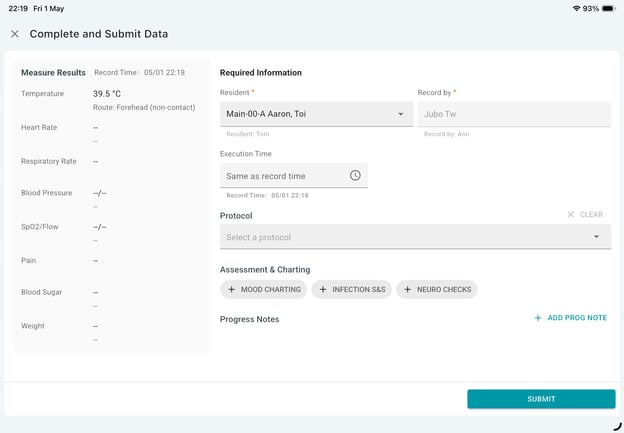
To facilitate starting a new protocol using the EM's newly captured data as the initial check, the protocol dropdown only includes protocols that (a) have Initial Check enabled; and (b) use the same assessment recorded during EM documentation, as configured by administrators on the Web Portal.
- Tap Submit at the bottom to complete the data recording and upload the data.
After submitting the data, you can review it again in the Record page from the menu to view the submitted emergency measurement.
Note:
1-Emergency measurement can be taken and submitted from the VitalLink App, and the recording/submission status can be tracked in the Emergency Log from VitalLink Web Portal.
2-This feature is available in ConnectedCare subscription plan only.