
- Tap Measure from the left sidebar menu.
- Select a measurement tab (e.g., VITAL SIGNS) at the top.
- Select a resident from the list.
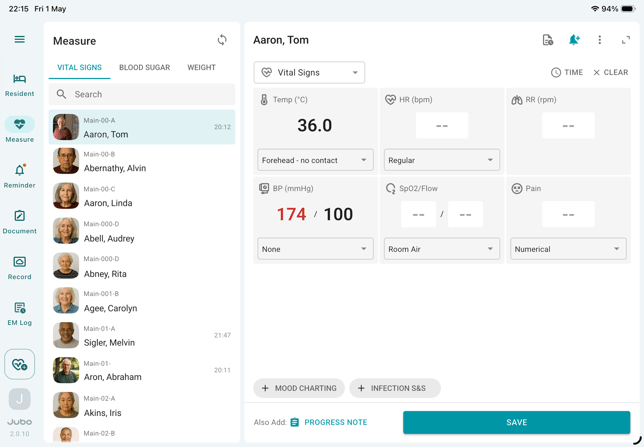
- Record measurements:
- Use Bluetooth-connected devices to auto-populate values, or
- Manually enter values by tapping each data entry field.
- To Edit a recorded entry, double-tap the field to make changes, or tap CLEAR in the top-right corner to remove all entries.
- Tap Save to complete the recording.
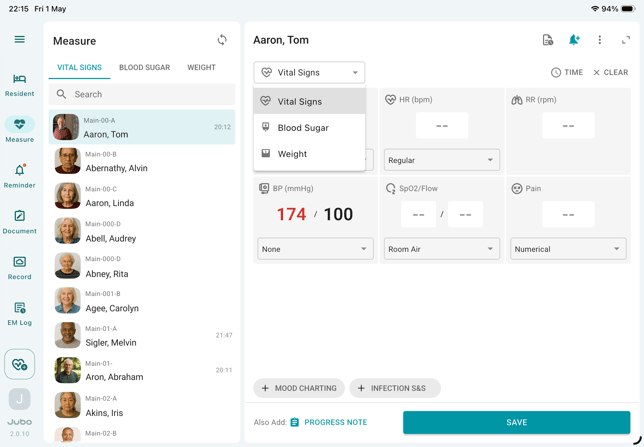
- To continue recording data for the same resident in other modules, tap a different module tab at the top of the screen or use the dropdown menu to switch modules.
Note
1.When recording Vital Signs, you can enter all measurements before tapping Save. You can review and update values before tapping Save. The most recent entries will overwrite previous values, and only the data saved will be synchronized to the PCC.
2. Measurements outside the thresholds configured in the VitalLink Web Portal will appear in red. If an extreme or physiologically unlikely value is entered (e.g., 500/140 for blood pressure), the system will prompt you to recheck again.
3. Once data is saved and synchronized to PointClickCare, it cannot be edited in VitalLink. To remove or correct submitted data, log in to PCC EHR and strike out the entry there.