
- Tap Document from the left menu bar.
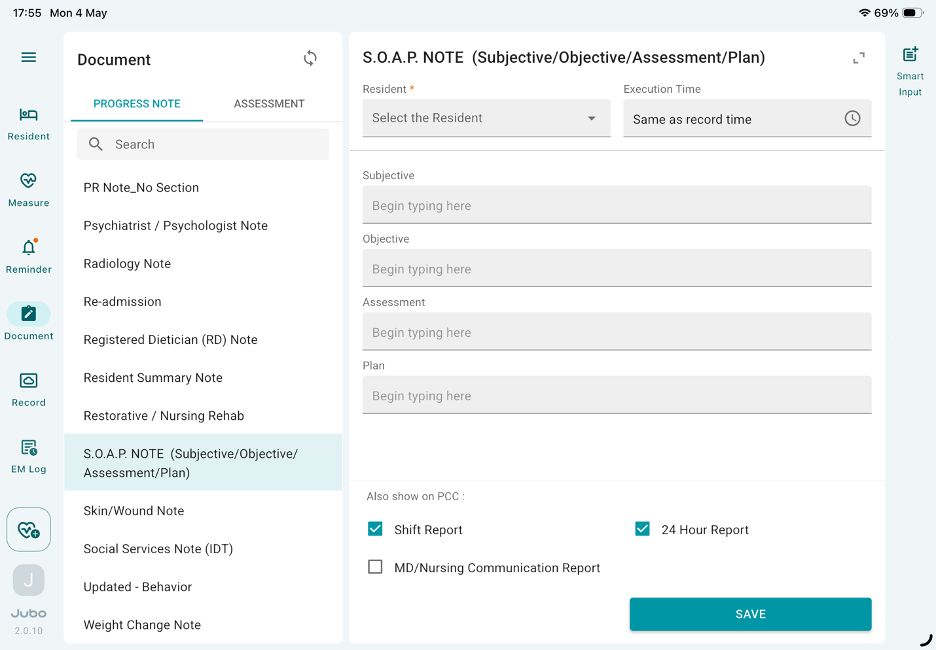
- Search for or select a Progress Note Type from the list. The corresponding note sections will update in the panel on the right.
- Select a Resident at the right panel.
- Tap the Note Text area to enter the note using voice-to-text or typing.
- Tap the Smart Input icon in the top-right corner to view previously recorded data for this resident.
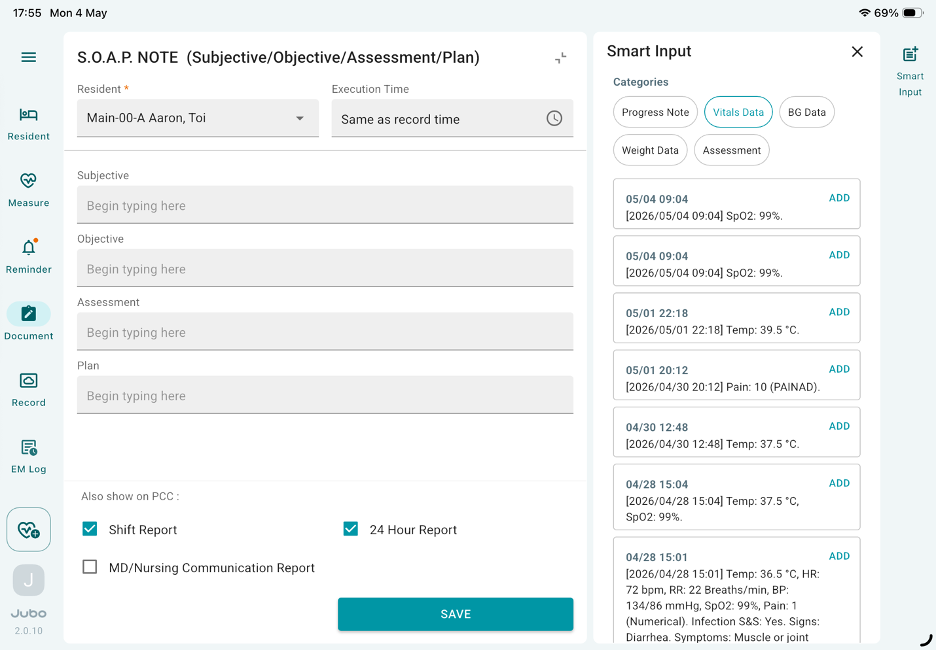
- Tap the green Add button within each data box to insert that content into your note.
- After finalizing the progress note, appropriate checkboxes to determine whether it should be synchronized to the Shift Report, 24-Hour Report, or MD/Nursing Communication Report in PointClickCare EHR.
- Tap the Save button to complete the note.
Note
1. For inputting progress notes through voice-to-text dictation, you must enable a dictation feature on your iPad to use this feature.
2. All note types and note sections are pulled from PointClickCare. Users can maintain or edit the note types from PointClickCare EHR.