
Users can take progress notes during their vital sign documentation session from the menu Measure. To complete multiple care records, including progress note, in one documentation session:
- Tap Measure from the left menu bar.
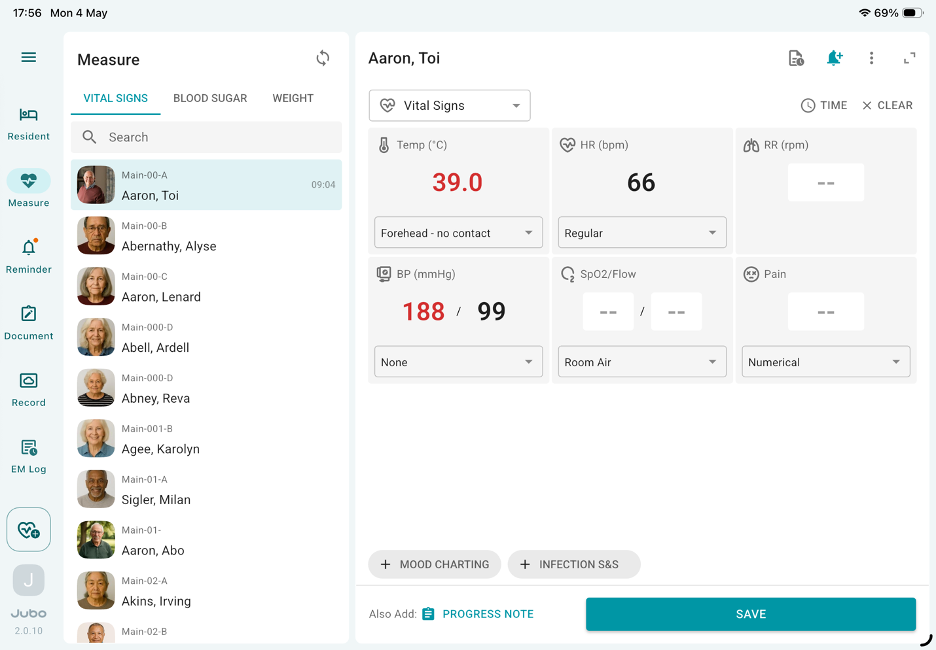
- After taking the necessary measurements, tap Also Add: PROGRESS NOTE at the bottom to write a progress note.
- Select a Note Type from the list. The corresponding note sections will update automatically.
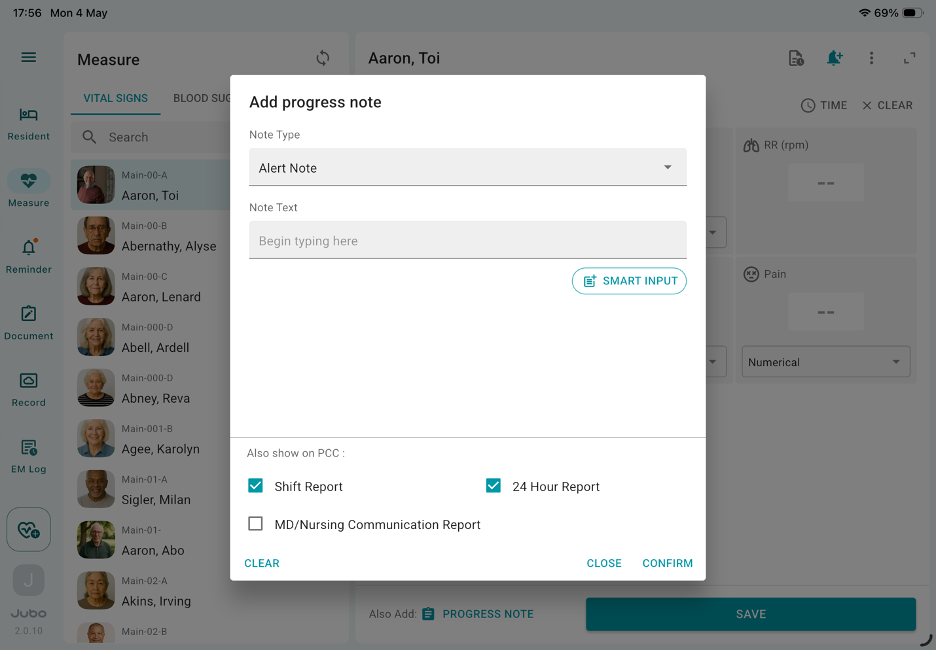
- Tap the Note Text area to enter the note using voice-to-text or typing.
- Use the Smart Input button to insert previously recorded health care data into your note.
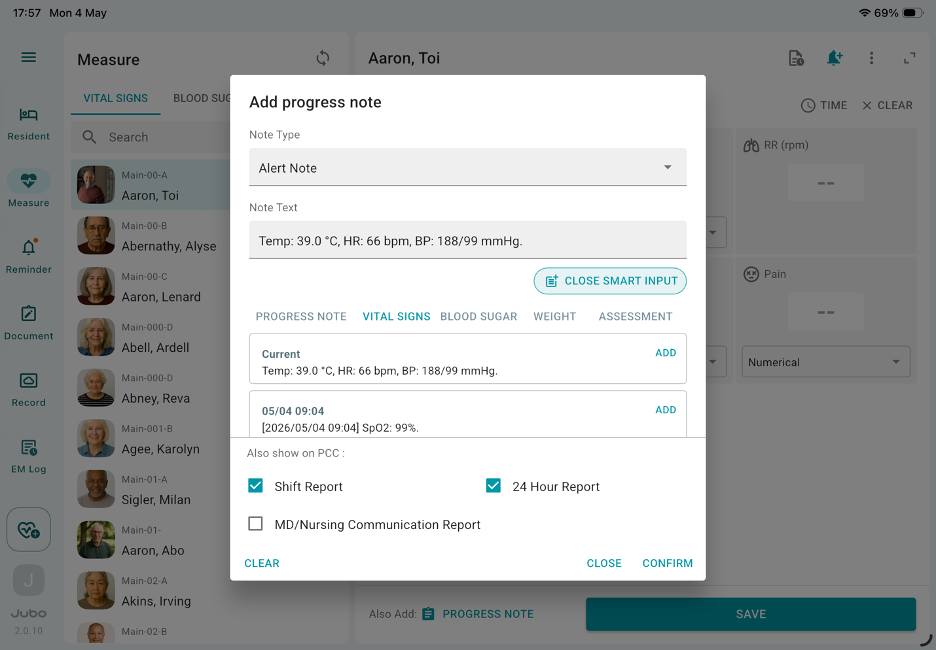
- Tap Confirm to save the current progress note.
- The saved note will appear at the bottom with its note type displayed—tap the note type to edit or tap the X icon to delete it.
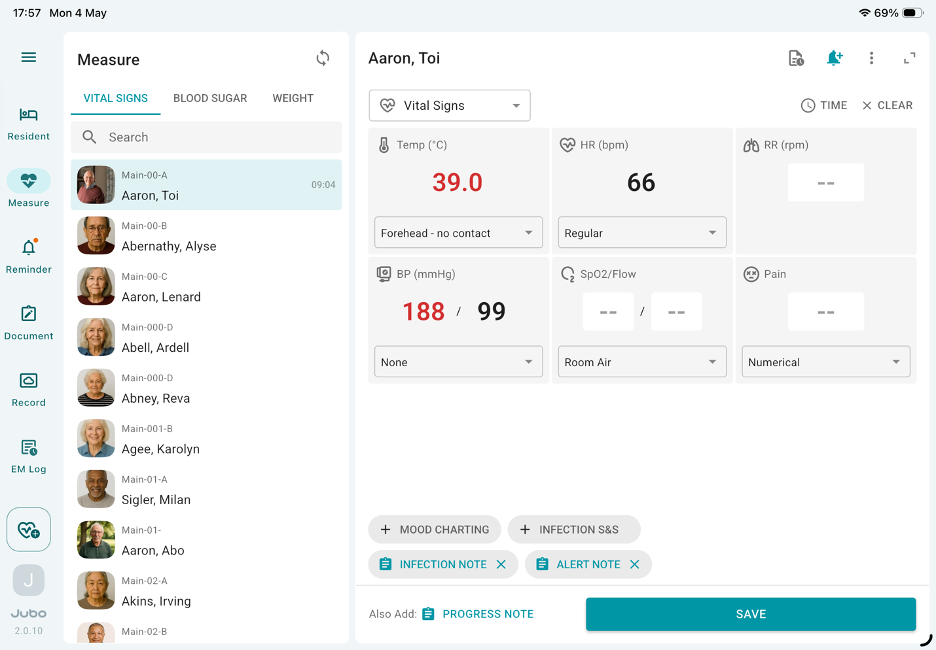
- To add more notes, tap ‘Also Add: PROGRESS NOTE’ again. You can add up to 5 progress notes in one session.
- Tap Save to complete the documentation session. To review the notes, tap Record from the left menu bar.
In this document session illustrated above, after saving, vital signs data will sync to the Vitals and Weight section in PointClickCare, and progress notes will sync to the Progress Note section—provided the user is signed in to VitalLink with a PointClickCare account and has the appropriate system authorization settings.
Note
1. For voice-to-text dictation, you must enable a dictation feature on your iPad to use this feature.
2. All note types and note sections are pulled from PointClickCare. Users can maintain or edit the note types from PointClickCare EHR.
3.To edit notes prior to saving, click + Progress Notes and make applicable changes. Edits cannot be made once saved.