
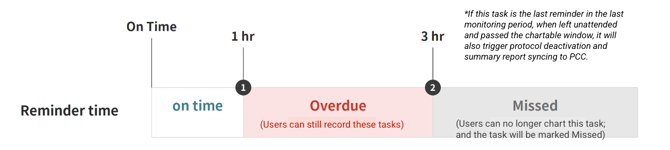
VitalLink now lets you see and set the two times that decide when a task becomes Overdue and when it becomes Missed, giving your facility direct control over charting deadlines, instead of relying on a fixed system default setup.
- Overdue – the task is late, but a user can still fill it in.
- Missed – the charting window has closed. The task can no longer be completed by anyone. This will leave a Missed mark in the protocol PDF report.
- Go to Protocol Settings and open the protocol you want to update.
- Select the specific Monitoring Period you want to adjust.
- Enter a value for ‘Appears Overdue after’ – how long after the due time the task should show as Overdue.
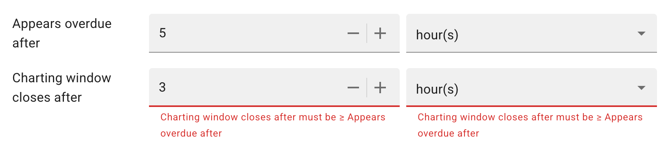
- Enter a value for ‘Charting window closes after’ – how long after the due time the task should become Missed and lock.
- Click Save.
Each Monitoring Period can be set separately; therefore, one protocol period can be strict on some checks while others can be more relaxed.
Notes:
1. ‘Appears overdue after’ can be set from immediately up to 30 days; ‘Charting window closes after’ must be at least 10 minutes and at most 30 days. The charting window can never be shorter than the overdue time, since a task can't stop being fillable before it's even flagged as late.
2.When the last task in a protocol passes its charting window, the whole protocol closes automatically. The system can take up to about an hour to generate and sync the summary report to PointClickCare.