
Last update: 2025 Dec
If users sign in to the VitalLink app using their PointClickCare (PCC) credentials and have the appropriate permissions to record data in the corresponding PCC modules, their data will be automatically synced as follows:
|
VitalLink data |
Format |
PCC Modules Names |
User permission on PCC |
|
Vital signs |
Value |
Wts/Vitals |
At least: Read/add |
|
Blood sugar |
Value |
Wts/Vitals |
At least: Read/add |
|
Weight |
Value |
Wts/Vitals |
At least: Read/add |
|
Progress Note |
Text |
Prog Note |
At least: Read/add |
|
Protocols – HIR |
|
Misc |
At least: Read/add |
|
Protocols – BSO-DOS |
|
Misc |
At least: Read/add |
To ensure successful data syncing with PCC, please verify the user's permission settings for the above in PCC EHR by navigating to : Admin > Setup > Security Users / Security Roles, then select the ‘Clinical’ tab, to adjust user permissions as needed.
Example Cases - PDFs not uploading to PCC EHR
If certain HIR/BSO-DOS PDF reports do not appear under Miscellaneous in PCC EHR, the issue is typically caused by restricted permissions for the Misc feature in the user’s Security Role. You can confirm this by checking the Health Record Monitor in the VitalLink web portal—affected records will display the error code “Restricted.”
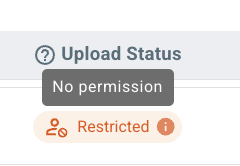
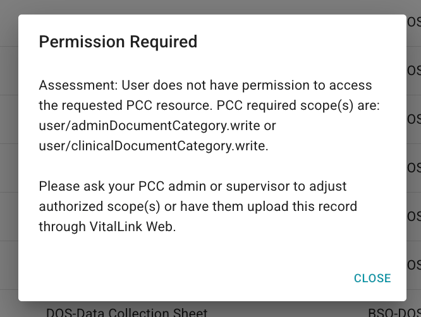
To enable users to upload PDF reports to Misc in PCC EHR, go to:
1. PCC EHR > Admin tab > Other > Setup > Security Roles
Open and edit the Security Role(s) for the users who should be allowed to send PDF reports.
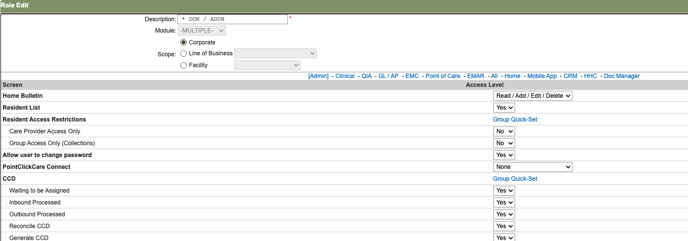
2. Search for Misc (through CTRL + F in Windows, or Command + F in Mac) and adjust the Access Level to at least include Add for the role and click Save when done.

After permissions are updated, new HIR/BSO-DOS PDF reports will sync automatically to PCC Misc as expected. For past reports that failed to sync, users can return to Health Record Monitor and use the Upload button in the bottom-right corner to manually re-upload them.